
Uplink demo
Choose Uplink in WebXash and the launcher fetches the demo data. Use this option if you want to play Half-Life in a browser without preparing local game files or signing into Steam.
Go to the browser playerPlay Valve’s single-player Half-Life: Uplink demo in your browser with WebXash. Bring a keyboard and mouse to explore Black Mesa.
Quick start Uplink → Start Demo → New Game
The Half-Life browser player opens the WebXash launcher as soon as you visit this page. To play Uplink, select the demo and press Start Demo. That starts the demo download. Once the Half-Life menu appears, choose New Game and a difficulty to enter Black Mesa.
The Half-Life browser player above opens the WebXash launcher automatically. Keep Half-Life selected under Games and look for the Half-Life Demos panel below it.
Click the Uplink row before pressing Start Demo. The button depends on that selection. The launcher then loads the game data into the browser, so give it time to finish on the first run.
If the engine console is visible after loading, press Esc to reach the Half-Life menu. Select New Game, pick a difficulty, then click the game view to give it input focus.
Check the in-game keyboard settings if you encounter different bindings.
At the first obstacle: Walk up to switches or panels before pressing E. Try crouching for a low opening. If movement takes the page with it, click inside the game and try again.
If the launcher is too narrow: Use Fullscreen above the Half-Life browser game to give the launcher and game more room. On a phone, turn the screen sideways before starting the demo. If the panels are still clipped, use Open in new tab. With a keyboard and mouse connected, click inside the game before trying the movement keys.
Uplink is a standalone single-player demo. It puts Gordon Freeman inside Black Mesa for a short sequence built around getting a communications uplink working. The original Half-Life campaign begins on a tram ride and follows a much longer route through the facility.
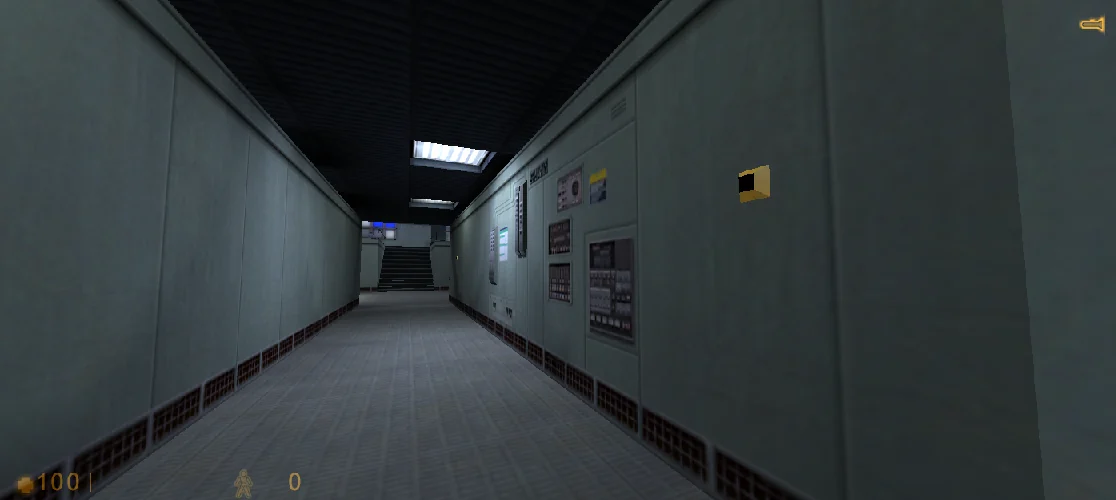
Choose Uplink in WebXash and the launcher fetches the demo data. Use this option if you want to play Half-Life in a browser without preparing local game files or signing into Steam.
Go to the browser playerGet the original game on Steam and install it for desktop play. You can also try importing your own installation into WebXash if you want to run that copy in a browser.
View Half-Life on SteamOpen WebXash in its own tab and choose Open game Folder. Select the parent Half-Life directory that contains the valve folder. In Steam, use the game’s Manage → Browse local files menu to locate that parent folder. The launcher reads the selected files into the browser for the session.
If the folder chooser is unavailable, try a ZIP of your own installation using Open ZIP. Keep valve at the top level of the archive so the launcher can find it. For example, the archive should contain valve/ directly as opposed to opening to a second folder called Half-Life/. The WebXash project instructions show the expected folder layout.
If WebXash lists several game directories after you open your folder, select valve to start the original campaign. If the list is empty, go back to the folder picker and select the parent directory one level above valve. If a ZIP import fails, open the archive in your file manager first. Check that you can see valve immediately and that the folder contains the files from your installation.
The player also lists other demo choices. Day One is useful if you want to see the opening of the campaign. HLDM refers to Half-Life Deathmatch, which is a separate mode with different setup requirements. Choose Uplink for the standalone mission described here.
If you plan to return to Uplink later, save in the game menu before closing the page. WebXash’s save manager groups compatible saves by game or mod. Open the same demo again before trying to load a save. If you move to a new device or browser, bring an exported copy where one is available.
First identify where the session stopped. A blank embedded player, a stalled demo download, and a running game with an unfocused mouse need different fixes.
Use Open in new tab above the player to check the upstream launcher directly. If it works there, continue in that tab. If the standalone launcher also stays blank, try a current desktop version of Chrome or Edge and check that your network can reach the GitHub Pages host.
Select the Uplink row first. If the engine has started but you see a console, try Esc before reloading. If the download reports an error or makes no progress, reopen the player and try again on a stable connection. On a device with limited memory, close other heavy tabs before retrying.
Click inside the game view and accept a browser mouse-control prompt if one appears. Esc can release mouse capture. Click the view again when you return to play. If sound is missing, check the tab mute setting and then the in-game audio settings. Try fullscreen or the standalone launcher if windowed controls are awkward.
Use the same browser profile and the same way of opening WebXash. Browsers may give the embedded player and the standalone tab separate storage. Clearing site data or ending a private session can remove local saves. Where the WebXash save manager offers an export, keep a copy before switching browsers or devices.
If the game is running, pause and save from the game menu before reloading. Reloading rebuilds the session in the browser and may drop progress since your last save. If the problem started after switching between windowed and fullscreen modes, first return to the game window, click it, and test movement. You can also lower the display resolution from the game settings if the browser is drawing frames slowly.
In the WebXash launcher, open Saves List, select the save you want to keep, then choose Download. Check that the save file is on your device before clearing any browser data. To restore the file in another browser, open the launcher there and use Add in Saves List. Start the same demo or game you saved in, then use Load Game in its menu to look for the imported save.
For browser storage behavior and game folder examples, see the WebXash documentation.
Yes. You can launch the Uplink demo in the WebXash player without buying the full game or creating an account. WebXash downloads demo data to your browser during startup. The full Half-Life campaign is available separately through Steam.
Uplink is Valve’s standalone demo for the original Half-Life. It gives you a self-contained Black Mesa mission with exploration, scripted encounters, and a communications objective. Pick it by name in the launcher to start that mission.
The Uplink demo runs inside WebXash and requires no separate game installer. Your browser needs to load the engine and its demo files over the network. A Steam installation is useful if your goal is to play the original campaign or supply its files to WebXash.
You can open the player on a phone or tablet. The practical experience depends on the browser, screen size, and input devices. Landscape mode gives the launcher more room. Use a desktop or laptop with a keyboard and mouse for the intended control scheme.
Uplink is the single-player option on this page. The WebXash project describes a separate Deathmatch setup with a compatible server. If you are looking for the desktop game’s multiplayer features, the Steam release is a separate option.
This WebXash build runs the original Half-Life family of games through Xash3D. Half-Life 2 uses the Source engine and needs its own compatible release or launcher.